
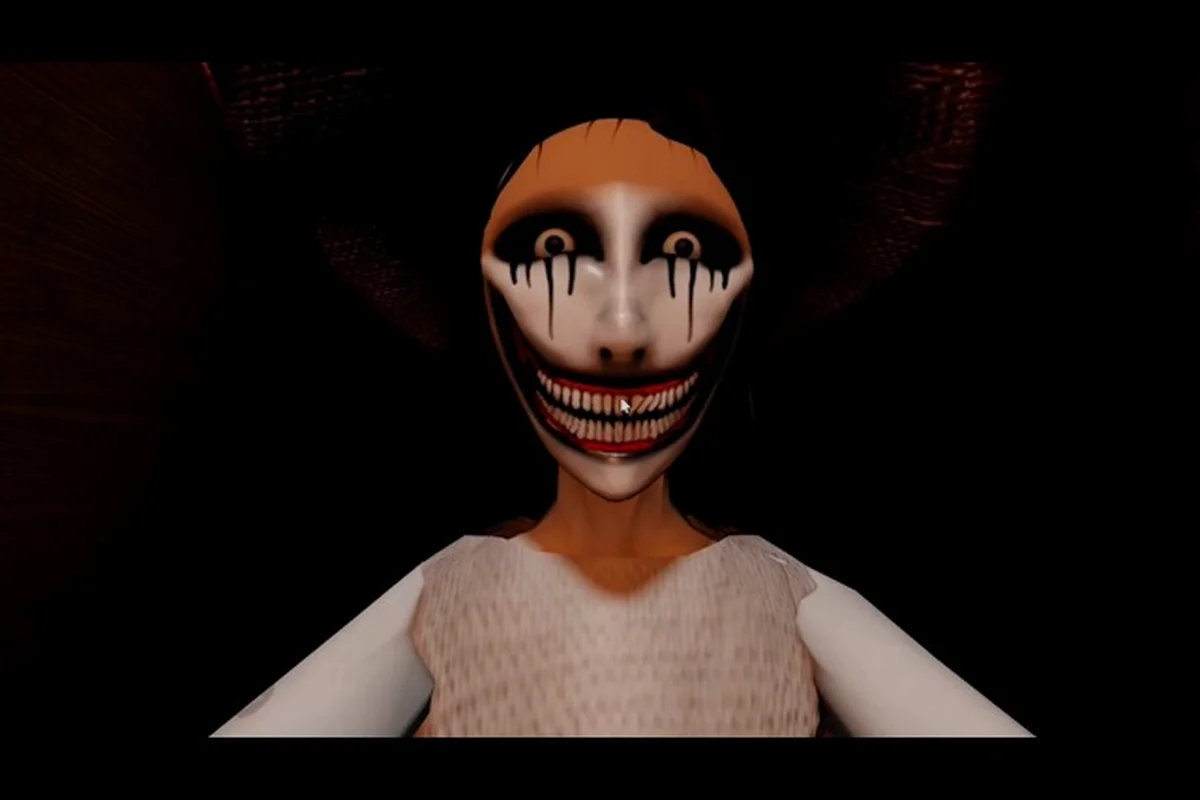
The Mimic graphics settings guide matters because smoother Roblox FPS makes every chase easier to read. Use these practical presets, audio choices, and fixes to improve performance without losing the horror atmosphere. For example, lowering Shadows, Reflections, and Effects to Low reduces GPU load during pursuit sequences, while keeping Lighting brightness and Ambient intact preserves the Mimic’s visibility cues. If The Mimic fps boost still leaves stuttering, cap the Roblox graphics level, close heavy browser tabs, and prioritize a stable internet connection for The Mimic lag fix; use The Mimic audio settings for horror to balance footsteps, breathing, and chase cues so important sounds remain distinguishable.
The Mimic graphics settings guide starts with the biggest visual costs
The Mimic can become difficult to play when low frame rates make the creature, interactable objects, and environmental details appear inconsistent. A steady frame rate does more than make movement feel cleaner; it also gives you more time to notice movement in dark rooms and reduces the delay between an input and the expected response. This The Mimic graphics settings guide prioritizes useful visual information over expensive effects.
Start by opening Roblox’s settings from the pause menu. Look for the graphics section and lower the overall graphics level to the lowest option that still keeps the game readable. The exact labels and available controls may vary by device and Roblox client, so treat these recommendations as a practical baseline rather than a promise about every version. Community reports commonly identify shadows, blur, and excessive view distance as major sources of stutter, although the strongest contributor depends on your hardware.
| Setting | Recommended starting point | Why it helps |
|---|---|---|
| Overall graphics | Lowest practical level | Reduces the rendering workload |
| Shadows | Off or lowest available | Avoids costly shadow updates |
| Blur effects | Off | Prevents full-screen processing overhead |
| View distance | Lower than maximum | Reduces distant scenery |
| Lighting quality | Low | Limits dynamic lighting work |
Turn off the effects that create sudden frame drops
The first pass should focus on full-screen blur, dynamic shadows, and any reflective or post-processing effects that remain enabled when the overall graphics setting is low. These features can trigger extra rendering work when the camera moves quickly, especially during encounters where you turn around quickly or move through a corridor.
Disable blur first, then shadows. If the frame rate remains unstable, reduce view distance or lighting quality. This order is deliberate because it preserves the simple visual cues needed to recognize the mimic and environmental objects. A heavily reduced setup should still be evaluated through actual encounters rather than by the settings menu alone.
Players who are still learning the game can also use the The Mimic beginner guide to focus on the visual information that matters during their first encounters. The right preset is not the one that looks best in a screenshot; it is the one that keeps threats readable during movement.
Keep the preset conservative
A common mistake is lowering only one setting while leaving Shadows, Blur, View distance, or Particle effects at maximum. Because The Mimic’s expensive effects can still reduce frame rate, a mixed configuration may look intentional but perform like a partial fps boost rather than a stable low-performance preset. Change one option at a time, then compare the table below to confirm that Shadows and Blur remain off and View distance is low. This also supports a lag fix strategy: identify the setting responsible for stutter before raising it again.
| Checkpoint | Low-performance preset | Balanced preset |
|---|---|---|
| Graphics level | Low | Low or medium |
| Shadows | Off | Low |
| Blur | Off | Off |
| View distance | Low | Medium |
| Lighting | Low | Medium |
| Particle effects | Low | Low or medium |
The balanced preset is useful when the lowest option looks too dark or makes it difficult to identify the mimic’s shape. In that case, restore only the setting that improves visibility. Do not automatically raise every option, because a single expensive feature can undo the benefit of the rest of the preset.
The Mimic fps boost starts with frame rate limits and display settings
Lowering graphics can improve performance, but it cannot remove the delay caused by an inconsistent frame rate cap. Roblox may also be using a display mode that does not match your monitor, while VSync can add input delay that is especially noticeable during quick turns. Check the game’s graphics menu for frame rate and display options, then compare them with the settings in Roblox or the device’s graphics control panel.
The most useful improvement is a stable target. A constant rate around 60 frames per second is often easier to manage than a rate that swings between very high and very low values. The right choice depends on your monitor, and high frame rates may require a display mode that can actually present them.
Match the game to your monitor
Use a refresh rate that matches your monitor’s normal operating mode. If your display runs at 60 Hz, selecting a much higher in-game frame rate does not guarantee a visible advantage and can add unnecessary work. If you use a higher-refresh display, confirm that the game window is actually running on that display rather than an automatically selected secondary monitor.
| Symptom | Likely setting issue | Practical adjustment |
|---|---|---|
| Frame rate changes constantly | Unstable cap or VSync | Set a stable cap and test VSync |
| Motion feels delayed despite smooth visuals | VSync or display mismatch | Test VSync off, then align refresh rate |
| Frame rate improves only in menus | Background effects or overlays | Close overlays and test in a busy scene |
| Performance drops after a long session | Cache, heat, or driver pressure | Restart Roblox and check device temperature |
Do not treat a single menu-based reading as a complete diagnosis. Measure performance in the same corridor, room, or outdoor area each time. Environmental lighting, effects, and network activity can alter the result, so consistent test conditions make comparisons meaningful.
Remove background competition
Close heavy overlays, screen recorders, browser tabs, and unnecessary capture tools before testing The Mimic fps boost. Some overlays consume GPU resources even when they are not visible in the game. On a desktop, also check whether the game is using the dedicated graphics processor rather than an integrated or low-power GPU.
For mobile devices, close other apps and restart the device before a long session. Background processes can remain active even when their windows are closed. If heat is a concern, improve airflow and avoid charging the device while playing; thermal throttling can reduce frame rates even after visual settings have been optimized.
Measure The Mimic fps boost over several minutes rather than judging it from a stationary scene. A quick test may appear stable while the mimic is idle, but sustained frame pacing only becomes visible when the creature moves, lighting effects update, and the camera turns quickly. For a practical check, replay the same route at the settings you plan to use, watch for frame-time spikes during pursuit, and compare average FPS with 1% lows; this makes The Mimic lag fix more reliable than relying on the headline frame-rate counter alone.
The Mimic lag fix separates graphics stutter from network delay
Not every pause in The Mimic is caused by poor rendering. Lag can come from unstable network conditions, server delay, overloaded servers, or interruptions caused by background applications. Because these causes feel similar to a player, separating them prevents wasted effort: lowering shadows will not repair a weak Wi-Fi connection.
Watch the behavior of the pause. A repeated hitch during camera movement, particle effects, or crowded areas suggests a rendering problem. A delay that occurs consistently while the character remains still, especially when another player reports the same issue, more often points toward the server or network. Exact diagnostic tools may vary, so use visual observation and basic connection checks rather than assuming one cause.
Use a simple diagnosis order
| Order | Test | What it indicates |
|---|---|---|
| 1 | Restart Roblox | Clears temporary client and cache issues |
| 2 | Test another Roblox experience | Helps isolate game-specific problems |
| 3 | Switch from Wi-Fi to Ethernet | Rules out some wireless instability |
| 4 | Close overlays and apps | Reduces local CPU and GPU competition |
| 5 | Lower the graphics preset | Removes known rendering costs |
| 6 | Compare with another player | Reveals likely server-side delay |
Work through the order one step at a time, restarting Roblox and testing another experience before altering Ethernet, overlays, or the graphics preset in The Mimic. For example, if another Roblox experience runs smoothly, treat that as a clue to examine The Mimic’s rendering settings rather than immediately changing every option. Record each test, the duration of the lag, and the frame rate shown by Roblox’s performance display; changing one setting at a time makes it easier to identify whether The Mimic fps boost came from reduced Shadows, lower resolution, or fewer visible effects. If the issue persists after all six tests, it may point to server-side delay rather than local graphics performance, so a The Mimic lag fix may require patience rather than further visual reductions.
Manage the local cache carefully
Closing and reopening Roblox can clear temporary client problems. Some players also report that restarting the platform after an update improves consistency, although this is based on community experience rather than a guaranteed fix. Avoid deleting unrelated files, and use Roblox’s built-in repair or reinstall options when installation files appear damaged.
If a server behaves poorly for everyone in the room, no local setting will restore missing updates. Waiting for the server to settle, changing servers, or rejoining may be more effective than further lowering the graphics level. If the problem occurs in every experience, focus on the client, network, and background process checks.
For difficult sequences, the The Mimic survival guide can help you plan quieter routes and conserve resources, such as batteries or healing supplies, before entering high-risk areas. If performance drops mainly during scripted chases or large crowd scenes, test with the graphics level reduced and watch whether the frame-rate gap narrows; if stuttering continues with the same animation, the cause may be network-related rather than visual. Comparing a normal server with a busy one can also reveal whether The Mimic lag is caused by entity rendering, server updates, or local background processes.
The Mimic audio settings for horror balance clarity with atmosphere
Sound is part of the horror experience, but maximum volume is not automatically the best setting. Excessive audio can make footsteps, environmental cues, and sudden effects harsh or difficult to interpret. The Mimic audio settings for horror should prioritize directional awareness and stable playback without sacrificing the atmosphere that makes tense encounters effective.
Start with the master volume at a moderate level and adjust individual channels if the game exposes them. Environmental sounds and effects should remain audible, but they should not mask quieter cues. If your device has spatial audio, compare it with the standard setting rather than assuming the more advanced option is always clearer.
Build a practical audio preset
| Audio control | Suggested level | Goal |
|---|---|---|
| Master volume | Moderate | Keep all cues comfortable |
| Effects | Medium | Preserve jumps and environmental cues |
| Music | Low or off | Prevent masking of important sounds |
| Voice or communication | As needed | Keep team communication intelligible |
| Device enhancements | Test and disable | Reduce distortion or delay |
These are starting points rather than exact values. The correct balance depends on headphones, speakers, room noise, and personal comfort. Make one change at a time and replay a familiar section so you can recognize whether the difference came from the audio setting.
Avoid confusing bass with useful information
Heavy bass may make impacts feel more intense, yet it can also hide quieter high-frequency cues. If you cannot distinguish footsteps or movement, reduce bass or low-end enhancement and listen again. If the game remains unclear, test standard audio instead of spatial processing because some implementations add processing overhead or produce inconsistent positioning.
Wireless headphones can also introduce intermittent delay. Test with wired headphones or a wired speaker when troubleshooting timing, because a familiar sound arriving late can feel like a game problem. If the audio remains stable but difficult to understand, check the in-game mix rather than the operating system.
The The Mimic advanced guide can help players connect sound cues with the game’s broader challenge patterns. Once the cues are easier to recognize, you can react earlier without turning every sound into something exaggerated.
A repeatable The Mimic graphics settings guide test for your device
Performance settings should be tested under realistic conditions. The calm menu is not a meaningful benchmark because it does not reproduce the scene complexity of an active chase. Choose a repeatable route, remain in one area, and record both the average frame rate and the most obvious stutters.
Run the test three times if possible. A single unusual pause could come from a server event, network hiccup, or an application starting in the background. Repeating the same test makes it easier to distinguish a persistent problem from a temporary interruption.
| Profile | Graphics changes | Best use |
|---|---|---|
| Minimum | Shadows off, blur off, low view distance | Older or mobile hardware |
| Performance | Minimum shadows and blur, medium lighting | Most struggling devices |
| Balanced | Low shadows, medium distance and lighting | Capable computers and newer phones |
| Visual | Medium shadows and effects | Stable high-end systems |
Move up one profile at a time instead of jumping straight to maximum. If the current profile is already unstable, test the next lower setting before changing several options. This makes it easier to identify the feature responsible for frame drops.
Keep two configuration checkpoints
Once you find a stable setting, take a screenshot of the menu or record the values. Device updates, Roblox client updates, and changes in your drivers can alter performance. A written record makes it faster to restore your preferred setup when something changes unexpectedly.
Also monitor the time of day when stuttering occurs. If evening network traffic causes delays, local graphics work may not help much. If the problem only appears in bright or effect-heavy areas, reduce shadows, lighting, and view distance first.
Know when to stop changing the graphics
A useful configuration produces consistent movement and readable threats. You do not need to chase the highest possible frame counter if the game is already stable and responsive. Extra processing can actually make the experience worse if it causes heat, unstable refresh behavior, or longer load times.
Treat the graphics settings as a controlled test rather than a one-time preset: reduce the most demanding effects first, then inspect the same route for changes in frame pacing, enemy animation, and sound-cue timing. If The Mimic feels sluggish, check whether the pause comes from rendering delay, network latency, or audio processing; adjusting shadows, particle effects, or resolution cannot correct a network-induced lag. Keep the horror audio settings for horror intact when possible, because footsteps, breathing, and directional cues reveal threats even when visual clarity is imperfect.
Frequently Asked Questions
What are the best graphics settings for The Mimic on a low-end PC?
Use the lowest practical graphics level, disable blur, turn shadows off or to their lowest setting, and reduce view distance. If the game remains readable but feels unstable, restore only lighting quality. Test the setup in an active encounter because menu performance does not reflect the full scene load.
How can I improve The Mimic FPS without changing the graphics level?
Close overlays, screen recorders, unnecessary applications, and browser tabs. Restart Roblox, verify that the correct graphics processor is active, and match the in-game frame cap to your monitor. These steps reduce system competition and display-related inconsistency, although they cannot remove lag caused entirely by the server.
What should I change first when The Mimic keeps lagging?
Record whether the pause happens while the camera moves or while the character stands still. Movement-related pauses point more strongly toward graphics effects, frame pacing, or device performance. Repeated pauses during stationary moments may indicate server or network delay, so test Ethernet, another experience, and a server populated by other players.
Is turning off shadows and blur enough for The Mimic?
Those two options are often the biggest quick wins, but they may not be sufficient on every device. Lower view distance, lighting quality, and particle effects if stuttering continues. Confirm your hardware acceleration and remove background overlays before assuming that the remaining problem comes from The Mimic itself.
How do audio choices affect horror performance in The Mimic?
Moderate master volume and a clear effects mix can make footsteps and environmental cues easier to interpret. Reduce music when it masks important sounds, and test spatial audio against the standard setting because processing can vary by device. Wired audio is also useful when diagnosing sound delay, since wireless latency can resemble a game issue.